- Platforms
- iOSAndroid
- Products
- NetScalerIntuneMicrosoft Edge
- Result
- Microsoft Edge on managed iOS and Android devices opens internal sites through NetScaler Gateway micro VPN
Overview
Set up micro VPN on NetScaler Gateway with the setup script, check the connection to Microsoft services, and give Microsoft Edge on iOS and Android per-app access to internal sites.
Microsoft Intune keeps growing its VPN partner ecosystem. Partners such as NetScaler Gateway (formerly Citrix Gateway) integrate with Intune app protection (MAM) enabled apps through a feature called micro VPN: a per-app, on-demand VPN for iOS and Android devices. Unlike a full VPN with an always-open tunnel, micro VPN connects only while the app runs. That reduces data costs and bandwidth, saves battery, and lets users reach internal business resources from any app with the micro VPN SDK, for example Microsoft Edge for iOS and Android, or your own wrapped line-of-business (LOB) apps.
Micro VPN with Intune is supported in these scenarios:
- Intune MAM only (app protection without enrollment), for personal devices (BYOD) that aren't enrolled in MDM.
- Intune MDM + MAM, for corporate devices that are enrolled and managed.
In this post I show how easy it is (with a script) to configure micro VPN on NetScaler Gateway and use it with Microsoft Edge on iOS and Android devices managed by Microsoft Intune.
Prerequisites
Before you start, check that you have the following.
| Area | What you need | Docs |
|---|---|---|
| Licence | Microsoft Intune Plan 1 (app protection policies and app configuration) | Licensing |
| NetScaler Gateway Advanced or Premium (VPX 3000 or higher) and a Citrix Endpoint Management entitlement | NetScaler + Intune | |
| Admin role | Privileged Role Administrator or Global Administrator to consent to the NetScaler application | Admin consent |
| Application Manager in Intune, to deploy Microsoft Edge and the app configuration policy | Roles | |
| NetScaler | NetScaler Gateway 14.1 or 13.1 (13.0 reached end of life in July 2024), with a free VIP and a server certificate | Setup guide |
| The micro VPN setup script from the NetScaler downloads page (sign-in required) | Integration | |
| Network | Outbound HTTPS (443) from NetScaler Gateway to *.manage.microsoft.com, login.microsoftonline.com and graph.microsoft.com, plus internal rules to the resources users should reach | Firewall rulesAzure AD Graph |
| Devices | iOS or Android devices with Microsoft Edge, managed with Intune MAM only or MDM + MAM | Edge for iOS/AndroidEdge release notes |
Configuration
Grant the consent first, then run the setup script on the gateway.
| Step | Console | What you set |
|---|---|---|
| 3.1 | Entra | Admin consent for the NetScaler Gateway app |
| 3.2 | NetScaler | Gateway virtual server from the setup script |
| 3.3 | NetScaler | Certificate and connection checks |
| 3.4 | Intune | App configuration policy with the micro VPN settings for Edge |
| 3.5 | NetScaler | Log level and live log on the appliance (optional) |
| 3.6 | Intune | Micro VPN for your own apps (optional) |
Grant the Microsoft Entra ID application permissions
Microsoft Entra admin center
To let NetScaler Gateway authenticate with your Microsoft Entra ID tenant, an administrator must open this URL and consent to the application (see Set up NetScaler Gateway for micro VPN integration with Intune):
https://login.windows.net/common/adminconsent?client_id=b6a53a76-5d50-499e-beb3-c8dbdad5c40b&redirect_uri=https://www.citrix.com&state=consentIn the Microsoft Entra ID audit logs, check that the consent to the application is listed as Success:

Note: if Users can register applications is set to No in your tenant, NetScaler now documents a second consent URL that you must also open.
Configure NetScaler Gateway with the setup script
NetScaler Gateway
Download the setup script from the NetScaler downloads page (sign-in required):
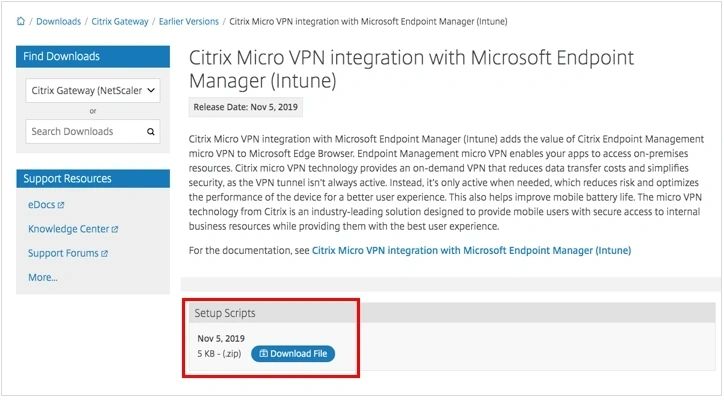
Note: run the setup script after you grant the application permissions in step 1.
In the script file, replace these placeholders with your values:
- <NSG_IP>: a free virtual IP address (VIP) for the new Gateway virtual server. Devices must reach it directly or through NAT. You can't use an existing Gateway virtual server.
- <ENV_NAME>: the display name of the Gateway virtual server (for example Gateway).
- <SERVER_CERT_NAME>: the name of the server certificate to bind to the new Gateway virtual server:

- <AAD_CLIENT_SECRET>: the secret generated with the NsgCreateSecret.ps1 PowerShell script (included with the setup script).
- <AAD_TENANT_ID>: the tenant ID of your Microsoft Entra ID. You find it in the Microsoft Entra admin center, or in the output of NsgCreateSecret.ps1.
I ran NsgCreateSecret.ps1 in PowerShell on Windows 10:
Set-ExecutionPolicy UnrestrictedExecution Policy Change
The execution policy helps protect you from scripts that you do not trust. Changing the execution policy might expose
you to the security risks described in the about_Execution_Policies help topic at
https://go.microsoft.com/fwlink/?LinkID=135170. Do you want to change the execution policy?
[Y] Yes [A] Yes to All [N] No [L] No to All [S] Suspend [?] Help (default is "N"): A.\NsgCreateSecret.ps1Confirm
Are you sure you want to perform this action?
Performing the operation "Connect-AzureAD" on target "Establishing a PowerShell session connected to {0} environment.".
[Y] Yes [A] Yes to All [N] No [L] No to All [S] Suspend [?] Help (default is "Y"): A
Account Environment TenantId TenantDomain AccountType
------- ----------- -------- ------------ -----------
admin@contoso.com AzureCloud <tenant-id> contoso.com User
CustomKeyIdentifier :
EndDate : 9/3/2120 8:12:08 AM
KeyId :
StartDate : 9/3/2020 8:12:08 AM
Value : <client-secret>Note: the output above has placeholders instead of my real tenant, tenant ID and secret. TenantId goes into <AAD_TENANT_ID>, and Value goes into <AAD_CLIENT_SECRET>.
Update (October 2026): NsgCreateSecret.ps1 uses the AzureAD PowerShell module, which Microsoft has retired, so the script may no longer run. Create the client secret with Microsoft Graph PowerShell or Microsoft Entra PowerShell instead (see Migrate from AzureAD to Microsoft Graph PowerShell), or check the current NetScaler documentation.
When all placeholders are replaced, run the whole script from the NetScaler shell:
/netscaler/nscli -U :<NetScaler management username>:<NetScaler management password> batch -f "/var/<NsgCreateScriptFileName>"Instead, I copied the CLI commands from Notepad++ and pasted them into an SSH session with the NetScaler appliance (for example with PuTTY):

Note: make sure every command returns Done.
Afterwards you should have a new Gateway virtual server in the UP state, because the SSL certificate is bound to it:

Check the connection to Microsoft services
NetScaler Gateway
The setup script saved a lot of time, so spend a few minutes checking that everything works.
First, reach your new Gateway virtual server (VIP) from the internet. I use an online tool such as SSL Checker, which confirms the server certificate and also tests public DNS, NAT, firewall and routing all the way to the Gateway VIP in your DMZ.
Then check the outbound connections from the NetScaler appliance to the Microsoft URLs. In an SSH session, go to the shell and run curl, for example:
curl -s -k https://login.microsoftonline.com<html><head><title>Object moved</title></head><body>
<h2>Object moved to <a href="https://www.office.com/login">here</a>.</h2>
</body></html>
...Finally, go back from the shell to the NetScaler CLI and run:
show oauthAction1) Name: Gateway_oa_action
OAuth Type: INTUNE
OAuth Status: COMPLETE
Grant Type: CODE
Authorization Endpoint: https://login.microsoftonline.com
Token Endpoint: https://login.microsoftonline.com
IDToken Decryption Endpoint:
Client ID: b6a53a76-5d50-499e
Client Secret: <client-secret>
Graph Endpoint URL: https://graph.windows.net
Tenant ID: <tenant-id>
Refresh Interval: 1440
Certificate Endpoint: https://login.microsoftonline.com/common/discovery/v2.0/keys
Username Field: upn
Audience: https://citrix.onmicrosoft.com/29b86053-639c-4426-8725-4b3f3ecdaeee
Issuer: https://sts.windows.net/<tenant-id>
Skew Time: 5
Authentication: ENABLED
Allowed Token Algorithms: HS256 RS256 RS512
PKCE: ENABLED
Token Endpoint Auth Method: client_secret_post
Metadata URL:
DoneThe OAuth Status must be COMPLETE. In the output above I replaced the client secret and tenant ID with placeholders.
Note: if the OAuth Status is anything other than COMPLETE (for example CERTFETCH, GRAPH, MDMINFO or AADFORGRAPH), follow the troubleshooting section in the NetScaler documentation.
Update (October 2026): Azure AD Graph (graph.windows.net) was retired on August 31, 2025 (see Migrate from Azure AD Graph). NetScaler now lists graph.microsoft.com in the firewall rule, and the Graph Endpoint URL in your output should point to it.
Add the micro VPN settings to Microsoft Edge
Intune admin center
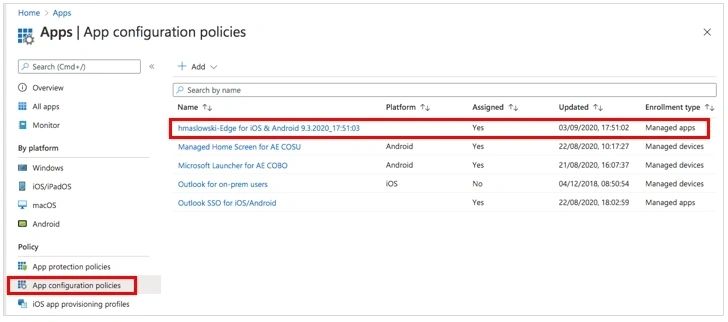
In 2020 the quickest way was the guided scenario Deploy Microsoft Edge for Mobile. It deployed Microsoft Edge for iOS and Android and created an app configuration policy for managed apps, which you then edit to add the micro VPN settings.
Update (October 2026): Intune removed all guided scenarios except Windows 365 Boot in March 2026 (see What's new in Intune). Add Microsoft Edge for iOS and Android as store apps, and create the policy under Apps > Configuration > Create > Managed apps, targeted to Microsoft Edge (see Manage Microsoft Edge on iOS and Android).
Find your app configuration policy for Microsoft Edge on iOS and Android, targeted to managed apps:
Select Edit next to Settings and add these keys:
- MvpnGatewayAddress: https://external.companyname.com
- MvpnNetworkAccess: MvpnNetworkAccessTunneledWebSSO
- MvpnExcludeDomains: optional comma-separated list of domains to exclude
Note: the value MvpnNetworkAccessTunneledWebSSO sends HTTP and HTTPS traffic through NetScaler Gateway (Tunneled Web SSO). The gateway answers HTTP authentication challenges inline, which gives users single sign-on to on-premises resources.
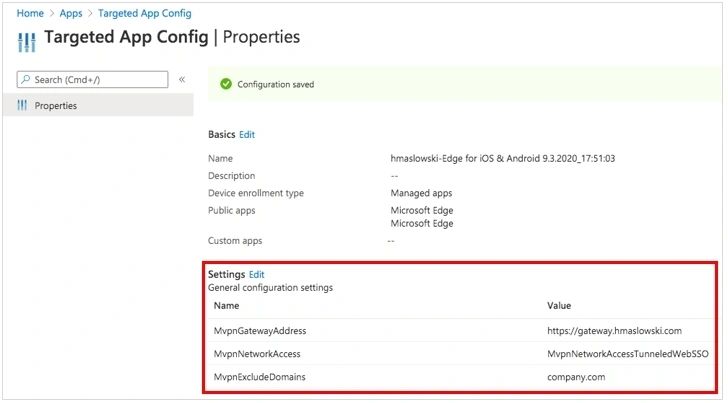
This completes the Microsoft Edge configuration for iOS and Android in Intune.
Optional: troubleshoot the micro VPN connection
NetScaler Gateway
To troubleshoot the Tunneled Web SSO connection from Microsoft Edge to NetScaler Gateway, open an SSH session with the appliance and do the following:
a) In the CLI, set the log level:
set audit syslogParams -logLevel ALLb) In the shell, follow the log:
tail -f /var/log/ns.logc) In the shell, run a live network trace to see traffic from a mobile device to your Gateway virtual server (VIP):
nstcpdump.sh host <Gateway_VIP> and port 443reading from file -, link-type EN10MB (Ethernet)
12:10:06.461847 IP 203.0.113.25.52314 > 192.168.10.180.443: Flags [S], seq 2789618497, win 65535, length 0
12:10:06.461850 IP 192.168.10.180.443 > 203.0.113.25.52314: Flags [S.], seq 1534181571, ack 2789618498, win 8190, length 0
12:10:06.469473 IP 203.0.113.25.52314 > 192.168.10.180.443: Flags [.], ack 1, win 685, length 0
12:10:06.469513 IP 203.0.113.25.52314 > 192.168.10.180.443: Flags [P.], seq 1:189, ack 1, win 685, length 188
12:10:06.469535 IP 192.168.10.180.443 > 203.0.113.25.52314: Flags [.], ack 189, win 511, length 0
12:10:06.469541 IP 192.168.10.180.443 > 203.0.113.25.52314: Flags [P.], seq 1:65, ack 189, win 511, length 64
...Note: the output is shortened, and the public IP address of the mobile device is replaced with a documentation address (203.0.113.25).
d) Check the Gateway policy hits as described in CTX138840.
Optional: add micro VPN to LOB apps
Intune admin center
In 2020 the Intune App Wrapping Tool for iOS had an optional -citrix flag that added micro VPN to your own in-house apps:

To use the -citrix flag, you also had to install the Citrix MDX Toolkit on the same Mac as the App Wrapping Tool for iOS.
The MAM SDK and MDX Toolkit files were on the Citrix downloads site under Citrix Endpoint Management (formerly XenMobile):

Note: the downloads are available only to Citrix customers after sign-in.
The App Wrapping Tool for iOS is a command-line tool. An example command with the -citrix flag:
./IntuneMAMPackager/Contents/MacOS/IntuneMAMPackager -i ~/Desktop/MyApp.ipa -o ~/Desktop/MyApp_Wrapped.ipa -p ~/Desktop/My_Provisioning_Profile_.mobileprovision -c 12A3BC45D67EF8901A2B3CDEF4ABC5D6E7890FAB -v true -citrixUpdate (October 2026): the current App Wrapping Tool for iOS documentation no longer lists the -citrix flag, and the tool now requires the -ac and -ar parameters (MSAL client ID and redirect URI).