- Platforms
- WindowsmacOS
- Products
- Admin By RequestEntra IDIntune
- Result
- Standard users request a 15-minute admin session and the admin approves it in the mobile app
Overview
Connect Admin By Request to Microsoft Entra ID, set the global settings and scope, deploy the Windows and Mac clients with Intune, and approve admin sessions from your phone.
Admin By Request (ABR) is an Endpoint Privilege Management (EPM) solution. It lets users get local administrator rights on Windows and macOS desktops (and servers) only when they need them, for one app or for a short session.
Always ask whether users really need administrator rights on their devices. One of the basic security principles says you should give users only the privileges they need for the task, so users without local administrator rights make more sense from a security point of view. You can provision Windows devices for users without administrator rights from the out-of-box experience (OOBE), for example with Windows Autopilot. Sooner or later those users will need elevated rights for some admin task, and that is where privilege management products such as Admin By Request come in.
Admin By Request has a Free Plan for up to 25 endpoints with no time limit, so you can evaluate it as long as you like. It needs no on-premises infrastructure, only configuration and integration.
In this post I show how to get started with Admin By Request for desktops: connect it to your Microsoft Entra ID (formerly Azure AD) tenant, configure the global settings and scope, and deploy the client to Windows and macOS devices with Microsoft Intune.
Prerequisites
Before you start, check that you have the following.
| Area | What you need | Docs |
|---|---|---|
| Licence | Microsoft Intune Plan 1 for the users of managed devices | Licensing |
| Admin By Request Free Plan (25 endpoints) or a paid subscription, one seat per endpoint with the client | Free Plan | |
| Admin role | Privileged Role Administrator (or Global Administrator) to grant admin consent for Directory.Read.All | Admin consent |
| Application Manager in Intune, to add and assign the client apps | Roles | |
| Entra ID | An app registration with the Microsoft Graph application permission Directory.Read.All and a client secret (24 months at most) | Entra ID ConnectorCredentials |
| Devices | Microsoft Entra joined Windows 11 or Windows 10 (1607 or later) Pro, Enterprise or Education | ABR + IntuneWindows 10 end |
| Mac with macOS 14 or later for Admin By Request for Mac 5.3, enrolled in Intune | Mac 5.3Install on macOS | |
| Admin By Request | Client for Windows (MSI) and Client for Mac (PKG) from the portal, plus the Mac configuration profiles for the system extension and Full Disk Access | Win32 appsmacOS PKG |
| Optional: the free Admin By Request mobile app for iOS or Android, to approve requests | Mobile app |
Configuration
Connect Entra ID first, so you can use its groups in the settings and scope.
| Step | Console | What you set |
|---|---|---|
| 3.1 | Admin By Request | Entra ID Connector |
| 3.2 | Admin By Request | Global settings for Windows and Mac |
| 3.3 | Admin By Request | Scope limited to Entra ID groups |
| 3.4 | Intune | Windows and Mac clients as Intune apps |
Connect Admin By Request to Microsoft Entra ID
Admin By Request portal
If you have Microsoft Entra joined Windows devices, use the Entra ID Connector in Admin By Request to connect it to your tenant. The integration gives you these benefits:
- Entra ID user and device groups can be used in Windows and Mac sub-settings.
- The user's phone number and email from Entra ID are suggested on the request form.
- Members of the Global Administrator and Microsoft Entra Joined Device Local Administrator roles are detected correctly, and the tray icon turns red.
- The inventory collects computer and user groups, full names, phone numbers and emails from Entra ID (if enabled).
To set up the integration, turn on the Entra ID Connector in the Admin By Request portal (adminbyrequest.com):

Update (October 2026): the connector is now under Settings > Tenant Settings > Identity > ENTRA ID (see Entra ID Connector). The screenshot shows the old path under Windows Settings and the old name Azure AD Connect.
Note: this is not the Microsoft Entra Connect server that you deploy for hybrid identity.
The connector needs an app registration in Microsoft Entra ID. The app registration gives Admin By Request permission to read your directory and consists of an Application ID and a Secret Key.
Sign in to the Microsoft Entra admin center (entra.microsoft.com), go to Entra ID > App registrations and select New registration:

Enter a name, for example Admin By Request Entra ID Connector, and select Register. Then select API permissions and remove the default User.Read permission under Microsoft Graph (and any other default permissions):

Select Add a permission > Microsoft Graph > Application permissions:

Expand Directory, select Directory.Read.All and Add permissions. Then select Grant admin consent and confirm with Yes:

The list of API permissions should now look like this:

Next, select Certificates & secrets > New client secret:

Choose the expiry, copy the secret from the Value column and paste it into Secret Key in the Admin By Request portal:

Update (October 2026): the Never expiry shown in 2020 no longer exists. A client secret lasts at most 24 months, and Microsoft recommends less than 12 (see Add credentials). Admin By Request suggests 24 months and warns on the portal Summary page before the secret expires, so put a reminder in your calendar to renew it.
Go to Overview, copy the Application (client) ID and paste it into Application ID in the Admin By Request portal:

Enter your tenant name, usually your company name followed by .onmicrosoft.com (for example maslowski.onmicrosoft.com).
Select Save. A green checkmark appears next to the button:

Note: if the data you entered is wrong, you see an error instead of the checkmark. Usually the Application ID or the Secret Key is wrong.
Configure the global settings
Admin By Request portal
Admin By Request comes with global settings (default settings) turned on, which means one set of rules for everyone.
Note: for more granular rules, use sub-settings for Windows and Mac.

To keep my test simple, I work with the global settings, which should normally be very restrictive.
In the portal, go to Endpoint Privilege Management > Settings > Windows Settings (or Mac Settings) > Authorization and turn on or off the options you need (see Windows settings):
- Allow Run As Admin (elevate one app, when the user right-clicks a file)
- Allow admin session and Access time (minutes) (default 15 minutes)
- Require approval and Require reason

The global settings apply to all users and computers, unless sub-settings override them or the users and computers are outside the scope.
Configure the global scope
Admin By Request portal
Thanks to the Entra ID integration from step 1, you can limit the scope to Entra ID groups. On the Scope tab, for example under Computers in group:

My global scope covers computers in two groups: All AutoPilot AAD Standard users and Admin By Request.
Everyone outside the global scope can't use the client and gets only a PIN code option when they select Run As Admin or request an admin session:

PIN code elevation also works when the computer is offline: the admin gives the user a PIN to elevate the offline device. For this to work, Require approval must be Off:

Note: to block PIN codes completely, turn on Deny PIN code unlock under Lockdown. Lockdown also has an Intune tab with the setting Device must be compliant, which needs the Entra ID Connector.
Deploy the Windows and Mac clients with Intune
Intune admin center
Download the latest Client for Windows and Client for Mac from the Admin By Request portal:

The Client for Windows (Workstation edition) is an MSI file. In 2020 I uploaded it to Intune as a line-of-business (LOB) app and installed it on my managed Windows devices:

Update (October 2026): Admin By Request now documents the Windows client as a Win32 app. Package the MSI with IntuneWinAppUtil.exe, and detect the app by the file version of AdminByRequest.exe, not by the MSI product code, which changes after an auto-update. Let either Intune or the Admin By Request auto-update manage the version, not both (see Intune deployment). The install command:
msiexec /i "AdminByRequest_Workstation.msi" /qnNote: replace the file name with the name of the MSI you downloaded.
The Client for Mac (Workstation edition) is a PKG file. In 2020 it had to be wrapped with the Intune App Wrapping Tool for Mac into an .intunemac file before you could upload it as a LOB app.
Update (October 2026): Intune removed .intunemac uploads in August 2022, so the wrapping tool is no longer needed. Upload the .pkg directly as a macOS LOB app, or as a macOS app (PKG), which also accepts unsigned packages and packages with scripts. Deploy the Admin By Request configuration profiles for the system extension and Full Disk Access as well (see Install on macOS).
User Experience
A standard user requests an admin session, and the admin approves it.
I show the user experience on a Windows 10 and a macOS 10.15 test device: a user requests an admin session for a short time (15 minutes) to do local admin tasks.
Windows user experience
I provision my test devices with Windows Autopilot (user-driven, Microsoft Entra joined). In the Autopilot profile, User account type is set to Standard, so the user gets no local administrator rights (see Autopilot profiles):

The device is provisioned with this Autopilot profile and is a member of the Entra ID groups (All AutoPilot AAD Standard users and Admin By Request) that I set as the scope in the Admin By Request portal.
Intune installs the Client for Windows:

You should see a green client icon. If it is red, you may have a network problem, or the user is already a local administrator. That happened to me when I provisioned a device for a user who is also a Global Administrator in Entra ID, so the user automatically got local administrator rights.
When a device is Microsoft Entra joined, Windows adds these members to the local Administrators group (see Manage local administrators):
- The Global Administrator role
- The Microsoft Entra Joined Device Local Administrator role (formerly Device Administrators)
- The user who joins the device to Microsoft Entra ID
Now a standard user requests administrator access for a session (15 minutes). On the right you see a phone (Android emulator) with the Admin By Request mobile app, a free addition to the portal that makes administration easier and lets you approve or deny requests. The user right-clicks the green client icon and selects Request administrator access:

The user enters a reason for the request (if required).
Note: the email and phone number from Entra ID are suggested. My test user has no phone number in Entra ID, so I entered it manually.

When Require approval is on, the request waits under Requests until it times out (after a week) or the session starts.
If you are signed in to the mobile app, you get a push notification:

Select the new request from TestUser to open the details, where you can approve or deny it:

After approval, the request moves from Pending to Approved, and the user gets an admin session for 15 minutes (the access time set in the portal):

macOS user experience
A similar scenario on a Mac: a user on macOS 10.15 (Catalina) requests an admin session for 15 minutes.
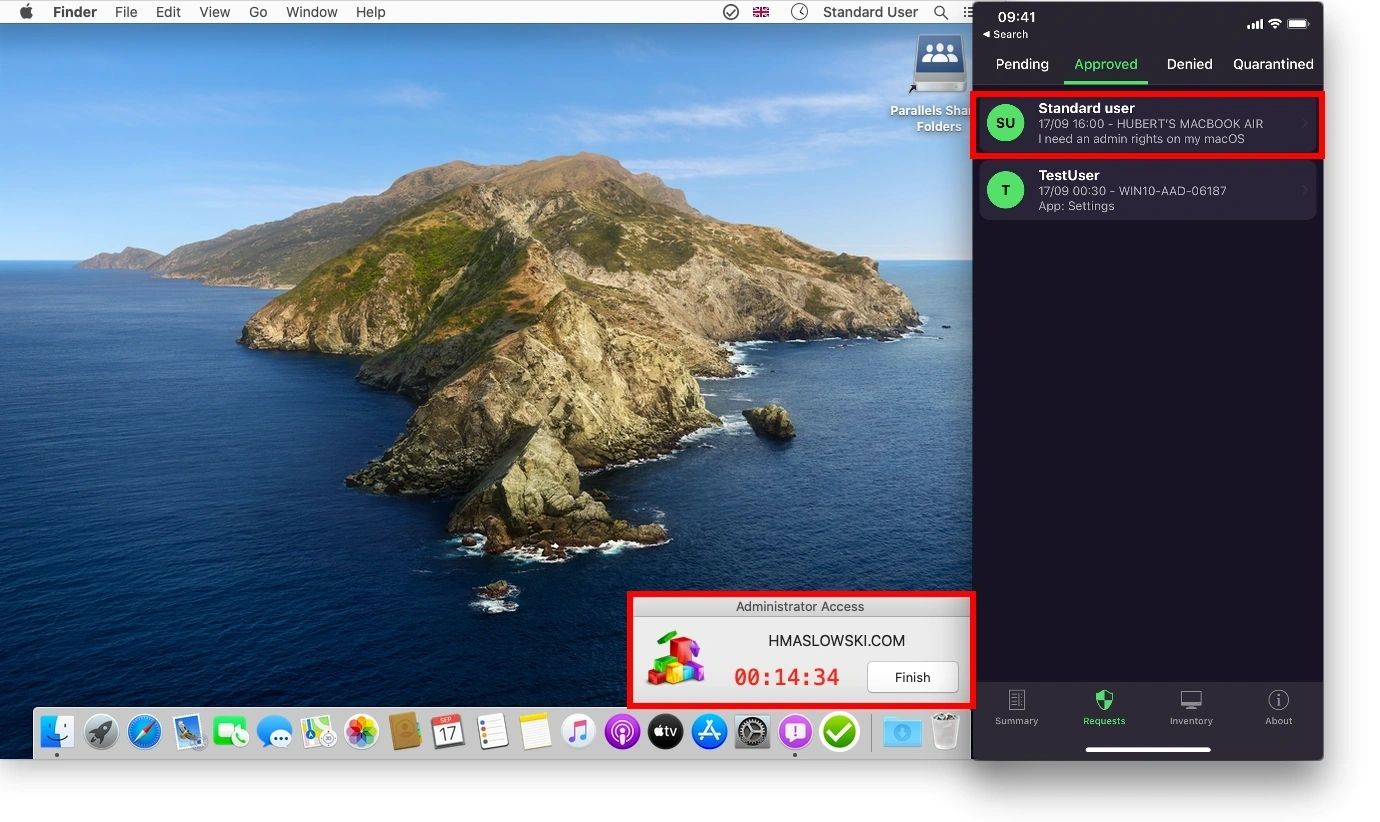
On the right you see an iPhone with the Admin By Request mobile app, used by the admin who approves the request:

The user selects Request administrator access in the Client for Mac:

The user enters the email, phone and reason (if required):

The new request appears under Pending for the admin to review:
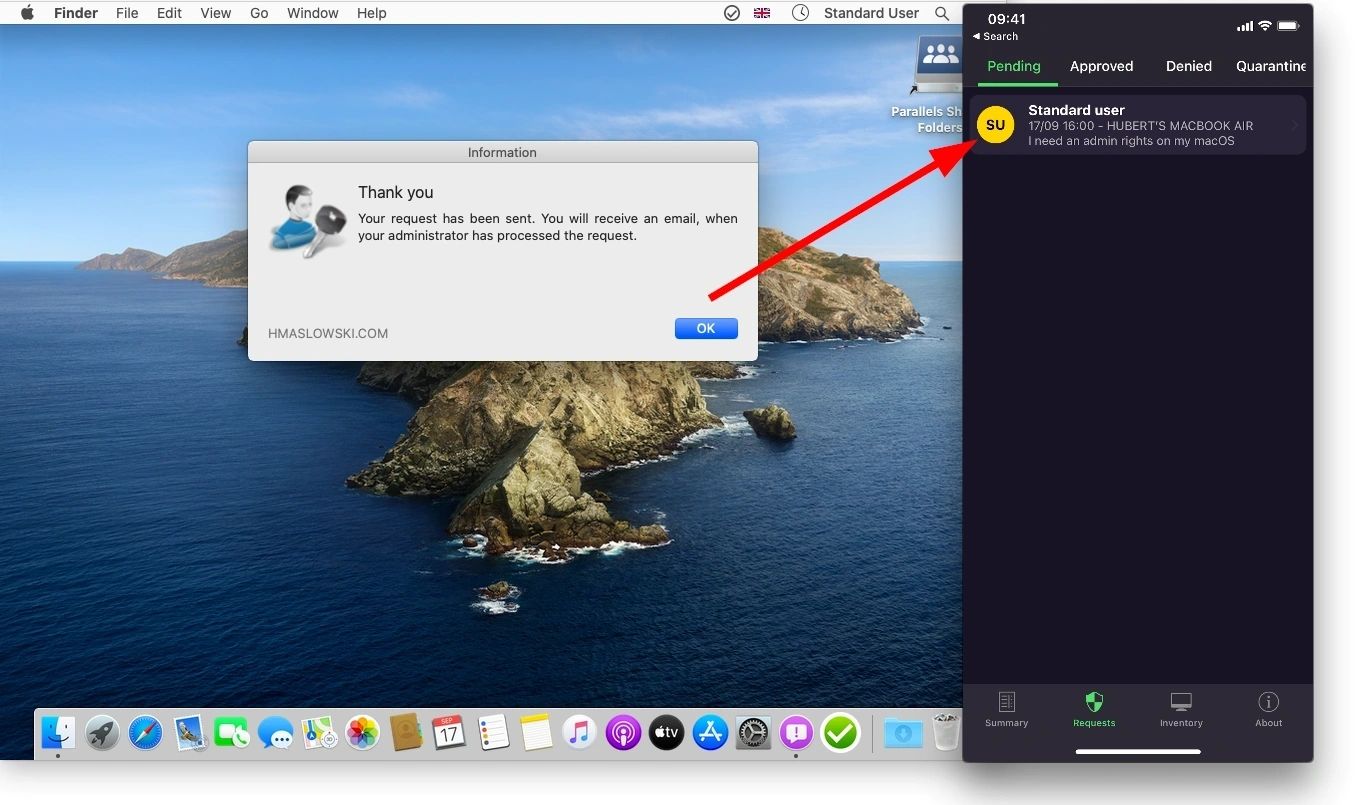
The admin approves the request in the mobile app (or in the web portal):

The Mac user gets an admin session for 15 minutes: