- Platforms
- Windows
- Products
- IntuneGoogle Chrome
- Result
- Chrome on Intune-managed Windows devices shows Managed by your organization and applies your policies
Overview
Ingest the Chrome ADMX file with an Intune custom profile, then turn Chrome policies on with OMA-URI settings you can check in Local Group Policy and the registry.
Google Chrome on Windows can be managed with a custom profile in Microsoft Intune. Custom profiles use OMA-URI (Open Mobile Alliance Uniform Resource Identifier) settings to configure the browser.
In this post I show how to ingest the Chrome ADMX file with a custom profile and then configure Chrome policies with OMA-URI settings.
Prerequisites
Before you start, check that you have the following.
| Area | What you need | Docs |
|---|---|---|
| Licence | Microsoft Intune Plan 1 | Licensing |
| Admin role | Policy and Profile Manager (device configuration profiles) | Roles |
| Devices | Windows 11 or Windows 10 Pro, Enterprise or Education (not Home), enrolled in Intune | Policy CSPWindows 10 end |
| Google Chrome | A current Chrome version, deployed for example as an MSI line-of-business app | Chrome downloadLOB apps |
| Chrome Enterprise bundle with the ADMX and ADML files, and the Chrome policy list | Policy listGoogle + Intune | |
| Devices | Optional: an admin PC with chrome.admx and chrome.adml in C:\Windows\PolicyDefinitions | ADMX ingestion |
Configuration
Ingest the ADMX file once, then add one OMA-URI setting per Chrome policy.
Ingest the Chrome ADMX file into Intune
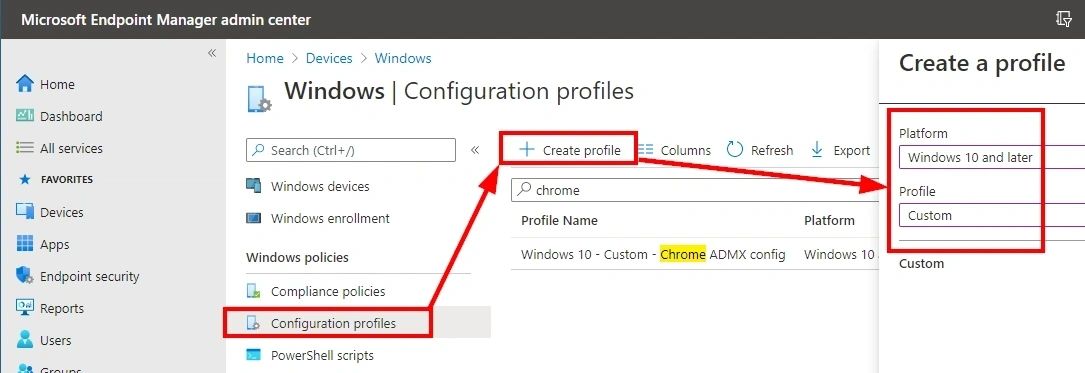
In the Intune admin center (intune.microsoft.com), go to Devices > Manage devices > Configuration > Create > New policy, select Windows 10 and later and the Custom profile type (under Templates):
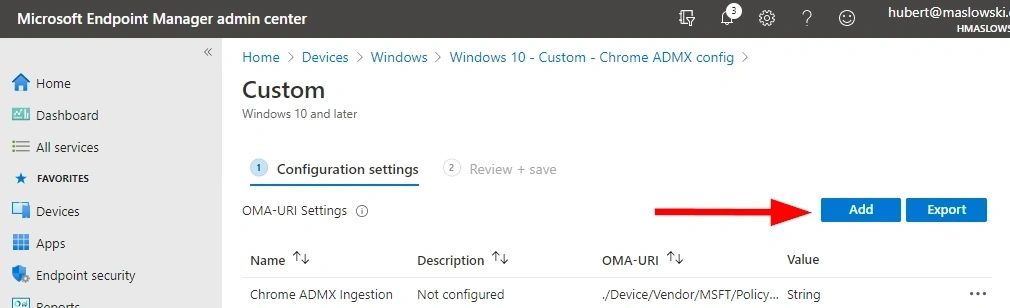
In Configuration settings, select Add to create a new OMA-URI setting:
In the Chrome Enterprise bundle (see Prerequisites), open Configuration\admx\chrome.admx in a text editor, copy the whole content and paste it into the Value of a String setting:
- Name: Chrome ADMX ingestion
- Data type: String
OMA-URI:
./Device/Vendor/MSFT/Policy/ConfigOperations/ADMXInstall/Chrome/Policy/ChromeAdmxValue:
<the whole content of chrome.admx>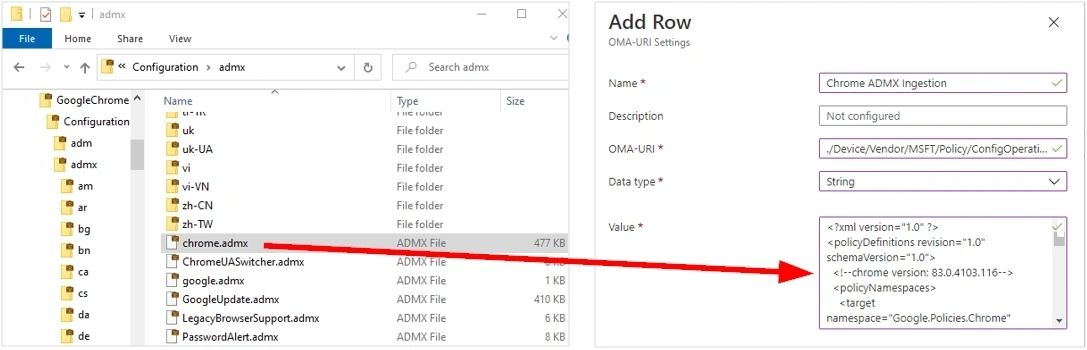
Assign this custom profile to all Windows devices that should have Chrome managed by Intune.
Now you can add your own OMA-URI settings to turn Chrome features on or off with the supported Chrome policies.
Note: the app name in the ADMXInstall path (here Chrome) becomes the start of every setting URI (Chrome~Policy~googlechrome). If you ingest the file under a different name, all setting URIs change (see Win32 app ADMX policy ingestion).
Optional: browse the settings on an admin PC
This step is optional, but I recommend it. It makes the configuration much easier, especially if you know Group Policy (GPO) in Active Directory and want to browse all the well-described Chrome policy settings.
From the Chrome Enterprise bundle, copy chrome.admx into C:\Windows\PolicyDefinitions on your admin PC:
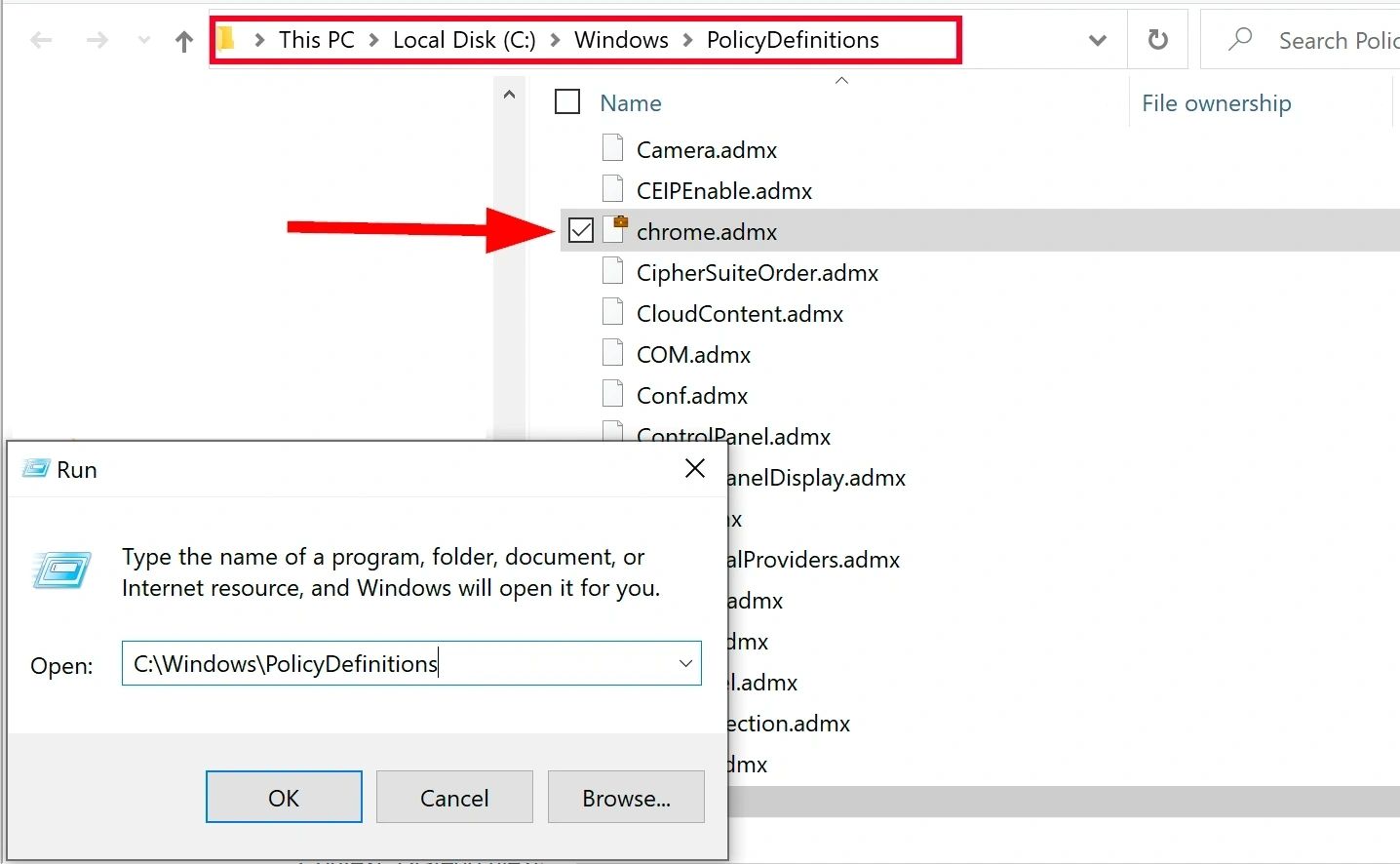
Also copy chrome.adml in your language, for example en-US, into C:\Windows\PolicyDefinitions\en-US.
Now all Chrome policy settings are available in Local Group Policy. Some settings are in subfolders (categories), which you reach with the tilde ~ character in the OMA-URI, for example:
./Device/Vendor/MSFT/Policy/Config/Chrome~Policy~googlechrome/<setting_name>
./Device/Vendor/MSFT/Policy/Config/Chrome~Policy~googlechrome~ContentSettings/<setting_name>
./Device/Vendor/MSFT/Policy/Config/Chrome~Policy~googlechrome~HTTPAuthentication/<setting_name>
./Device/Vendor/MSFT/Policy/Config/Chrome~Policy~googlechrome~Startup/<setting_name>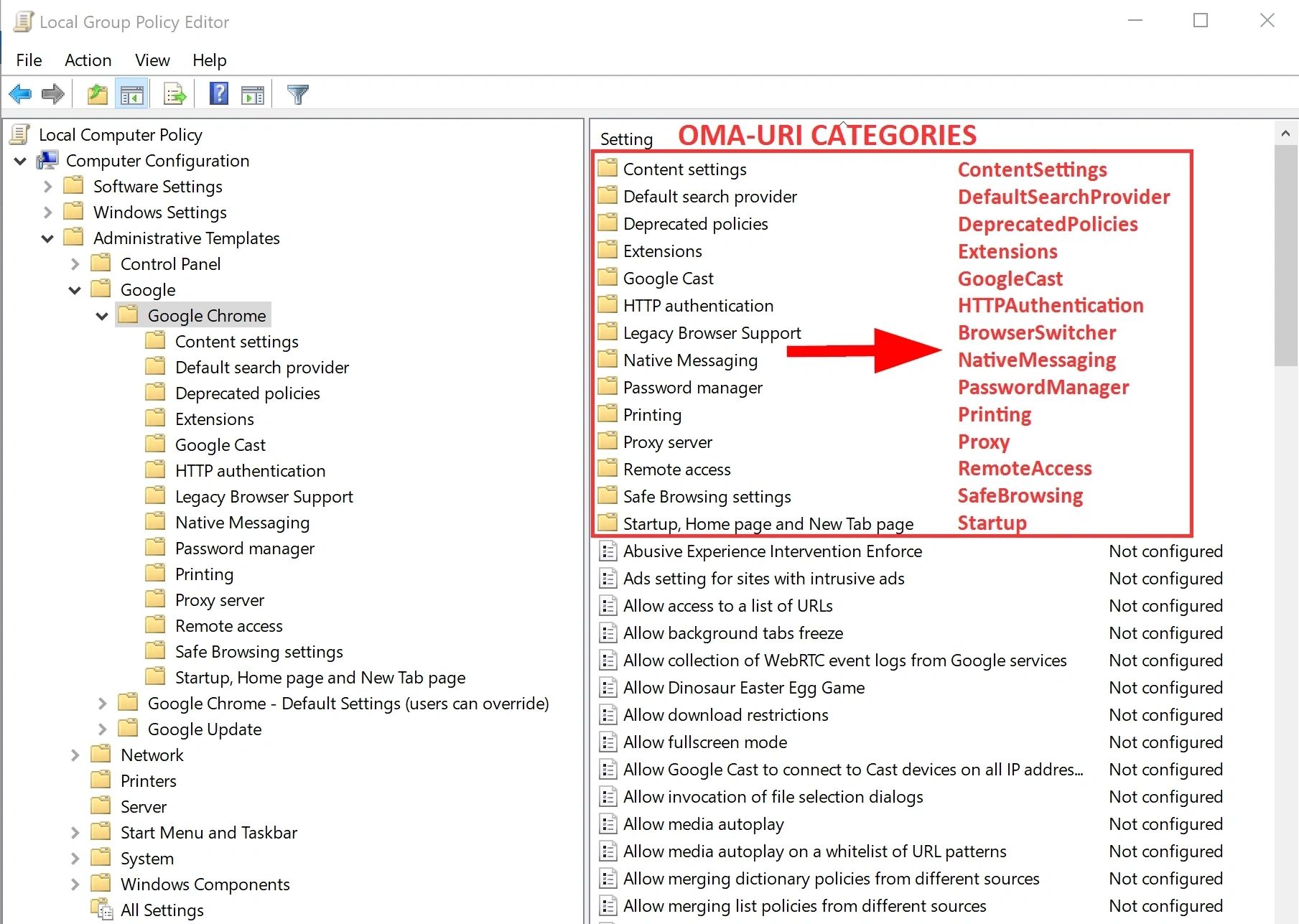
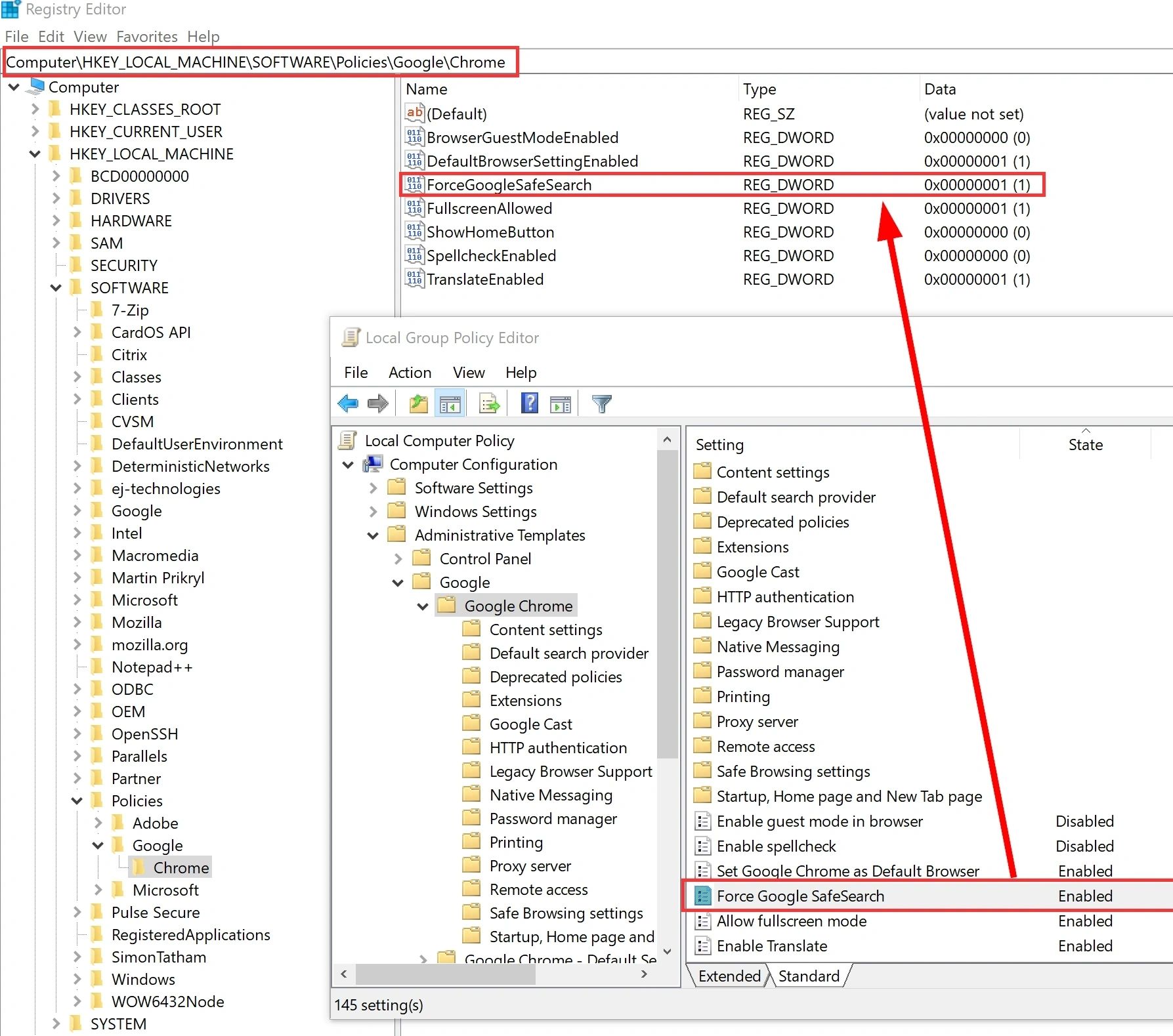
Configure the settings you need in Local Group Policy, then check the setting and its value in the registry:
HKEY_LOCAL_MACHINE\SOFTWARE\Policies\Google\Chrome
In my first example, I turned on the policy Force Google SafeSearch. In the registry, ForceGoogleSafeSearch has the value 1 (enabled):
The matching custom OMA-URI setting in Intune:
- Name: for example Chrome – ADMX – ForceGoogleSafeSearch
- Data type: String
OMA-URI:
./Device/Vendor/MSFT/Policy/Config/Chrome~Policy~googlechrome/ForceGoogleSafeSearchValue:
<enabled/>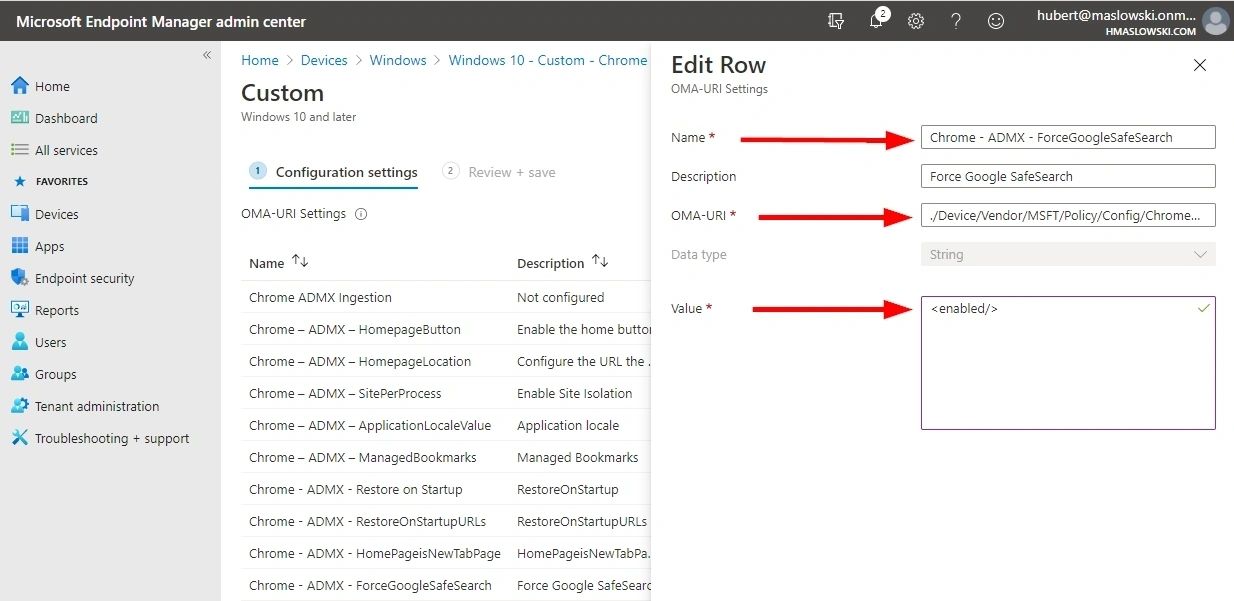
In the second example, I turned on the policy Supported authentication schemes from the HTTP authentication category.
Note: the possible values are basic, digest, ntlm and negotiate, separated by commas.

When the policy is enabled, the registry shows the AuthSchemes value:

Now you have everything you need for the custom OMA-URI setting in Intune:
OMA-URI:
./Device/Vendor/MSFT/Policy/Config/Chrome~Policy~googlechrome~HTTPAuthentication/AuthSchemesValue:
<enabled/><data id="AuthSchemes" value="ntlm,negotiate"/>
Update (October 2026): the screenshot shows the value with single quotes (‘ntlm’,’negotiate’). Google's documentation uses a plain comma-separated list, as in the code box above.
Update (October 2026): the settings catalog now includes many Google Chrome settings, so you don't need ADMX ingestion for them. For Chrome policies that aren't in the catalog, you can also use Imported Administrative templates (still in preview): import google.admx first, then chrome.admx. Don't configure the same Chrome policy in more than one profile, or the settings conflict.
Result
Check the policies in Chrome itself.
On a Windows device managed by Intune, open Chrome and go to chrome://management to confirm that Your browser is managed. You can also open the three-dot menu and see Managed by your organization:

Go to chrome://policy to see all the policies applied by Intune:

You can also see the applied policies in the registry:
HKEY_LOCAL_MACHINE\SOFTWARE\Policies\Google\Chrome