- Platforms
- Windows
- Products
- IntuneWindows AutopilotMicrosoft Edge
- Result
- A physical device deploys itself and signs in to a full-screen browser kiosk, with no user interaction
Overview
Build a zero-touch Windows kiosk: Autopilot self-deploying mode sets up the device with no user, and a single-app kiosk profile runs Kiosk Browser or Microsoft Edge full screen.
Windows Autopilot self-deploying mode is meant for kiosks and shared devices. The profile is user-less: nobody signs in during setup, so a kiosk can deploy itself with zero touch as soon as it's connected to the network.
Windows has two kinds of kiosk, single-app and multi-app (see Assigned access):
- Single-app runs one app full screen, for example a web browser, and signs in automatically.
- Multi-app locks the device to a set of apps that you choose.
In this post I set up a single-app kiosk with two browsers, Kiosk Browser and Microsoft Edge, on a device deployed with Windows Autopilot self-deploying mode from Microsoft Intune.
Prerequisites
Before you start, check that you have the following.
| Area | What you need | Docs |
|---|---|---|
| Licence | Microsoft Intune Plan 1 and Microsoft Entra ID P1 (or a bundle such as Microsoft 365 E3) | Autopilot licences |
| Admin role | Policy and Profile Manager in Intune, for the Autopilot profile, the kiosk profile and the custom profile | Roles |
| Intune | Devices registered in Windows Autopilot and a self-deploying deployment profile | ProfilesSelf-deploying |
| Kiosk Browser added as a Microsoft Store app (new), or Microsoft Edge 87 or later | Store appsKiosk BrowserEdge kiosk | |
| Devices | Physical devices with TPM 2.0 and device attestation. Virtual machines are not supported | TPMSelf-deploying |
| A supported version of Windows 11 Pro, Enterprise or Education. Shell Launcher (step 3) needs Enterprise or Education | RequirementsShell Launcher | |
| Network | Wired Ethernet recommended for zero touch. TPM attestation needs access to the HTTPS URLs of your TPM vendor | Networking |
Configuration
Create the Autopilot profile, then set up the kiosk with Kiosk Browser or Microsoft Edge.
Create the self-deploying Autopilot profile
The self-deploying Autopilot profile is pretty standard. This is how I configured it in the Intune admin center:

- Deployment mode: Self-Deploying (it was in preview in 2020)
- Join to Microsoft Entra ID as: Microsoft Entra joined

Assign the profile to your kiosk devices. As the prerequisites say, they must be physical devices with TPM 2.0 (see Configure Windows Autopilot profiles).
If you wonder what happens with a virtual machine (virtual TPM):

Error 0x800705b4 at the first step of Autopilot. Microsoft says this happens on any device without TPM 2.0 support and on any VM, Hyper-V virtual TPMs included (see Securing your hardware (Failed: 0x800705b4)):

Kiosk Browser with a kiosk profile
I tested two browsers for my single-app kiosk: Kiosk Browser and Microsoft Edge.
Kiosk Browser is a Universal Windows Platform (UWP) app. In 2020 it came from Microsoft Store for Business, synced to Intune, and I added the Offline licence version because it's assigned to devices (the Online version is for users):

Update (October 2026): Microsoft Store for Business was retired in 2023. Add Kiosk Browser as a Microsoft Store app (new) in Intune and use System install behavior for device assignments (see Add Microsoft Store apps).
When I assigned the Offline version, I selected Device licensing:

Then create the Windows kiosk device configuration profile (see Kiosk settings for Windows):
- Select a kiosk mode: Single app, full-screen kiosk
- User logon type: Auto logon
- Application type: Add Kiosk browser
- Default home page URL

Assign the kiosk profile and the Kiosk Browser app to the devices that deploy with Autopilot self-deploying mode.
Microsoft Edge with Shell Launcher
When I wrote this post (Q4 2020), the new Edge (Chromium) wasn't officially supported in a single-app kiosk yet; it was on the roadmap for 2021.
Update (October 2026): that support shipped. For a simple Edge kiosk, choose Add Microsoft Edge browser in the kiosk profile from step 2, then set the Edge Kiosk URL and Public Browsing (InPrivate) or Digital/Interactive Signage (InPrivate). The Shell Launcher method below still works, but only on Windows Enterprise and Education (see Shell Launcher).
In 2020 I ran Edge in kiosk mode with the ShellLauncher setting of the AssignedAccess CSP, as Michael Niehaus explained on his blog.
Edge has two kiosk types that you start from the command line (see Configure Microsoft Edge kiosk mode): Digital/Interactive signage (fullscreen) and Public browsing (public-browsing):
msedge.exe --kiosk www.example.com --edge-kiosk-type=fullscreen
msedge.exe --kiosk www.example.com --edge-kiosk-type=public-browsing
This is the Shell line I used for Edge:
<Shell Shell="%ProgramFiles(x86)%\Microsoft\Edge\Application\msedge.exe --kiosk https://www.whatsmybrowser.org --nofirstrun --edge-kiosk-type=public-browsing" V2:AllAppsFullScreen="true">Note: Microsoft now documents the first-run switch as --no-first-run. Here is a complete Shell Launcher XML with my Edge command, based on Microsoft's sample (see Shell Launcher configuration file). It runs Edge for the auto logon account and restarts it when it closes:
<?xml version="1.0" encoding="utf-8"?>
<ShellLauncherConfiguration xmlns="http://schemas.microsoft.com/ShellLauncher/2018/Configuration"
  xmlns:V2="http://schemas.microsoft.com/ShellLauncher/2019/Configuration">
  <Profiles>
    <DefaultProfile>
      <Shell Shell="%SystemRoot%\explorer.exe" />
    </DefaultProfile>
    <Profile Id="{EDB3036B-780D-487D-A375-69369D8A8F78}" Name="Edge">
      <Shell Shell="%ProgramFiles(x86)%\Microsoft\Edge\Application\msedge.exe --kiosk https://www.whatsmybrowser.org --no-first-run --edge-kiosk-type=public-browsing" V2:AppType="Desktop" V2:AllAppsFullScreen="true">
        <DefaultAction Action="RestartShell" />
      </Shell>
    </Profile>
  </Profiles>
  <Configs>
    <Config>
      <AutoLogonAccount />
      <Profile Id="{EDB3036B-780D-487D-A375-69369D8A8F78}" />
    </Config>
  </Configs>
</ShellLauncherConfiguration>
Deploy the XML to the kiosk devices (not users) with a Custom profile (OMA-URI), data type String (XML file):
./Device/Vendor/MSFT/AssignedAccess/ShellLauncher
Assign this custom profile to your kiosk devices instead of the kiosk profile from step 2. All you need is the custom profile and Microsoft Edge installed (Edge is built into current Windows):

User Experience
Finally, start a kiosk device and watch it deploy itself.
This is what self-deploying provisioning looks like when the device starts connected to Ethernet with internet access (otherwise you connect to Wi-Fi manually).
The Welcome! Let's get you set up for work screen appears only on self-deploying (user-less) devices. It skips user authentication, which makes zero-touch deployment possible:

The Setting up your device for work screen looks the same for all Autopilot profiles:

The device restarts and signs in automatically with the local kiosk account (if auto logon is on):

Kiosk Browser opens full screen, as set in the kiosk profile:

Microsoft Edge looks almost the same. Shell Launcher starts it in kiosk mode with the command line from step 3:
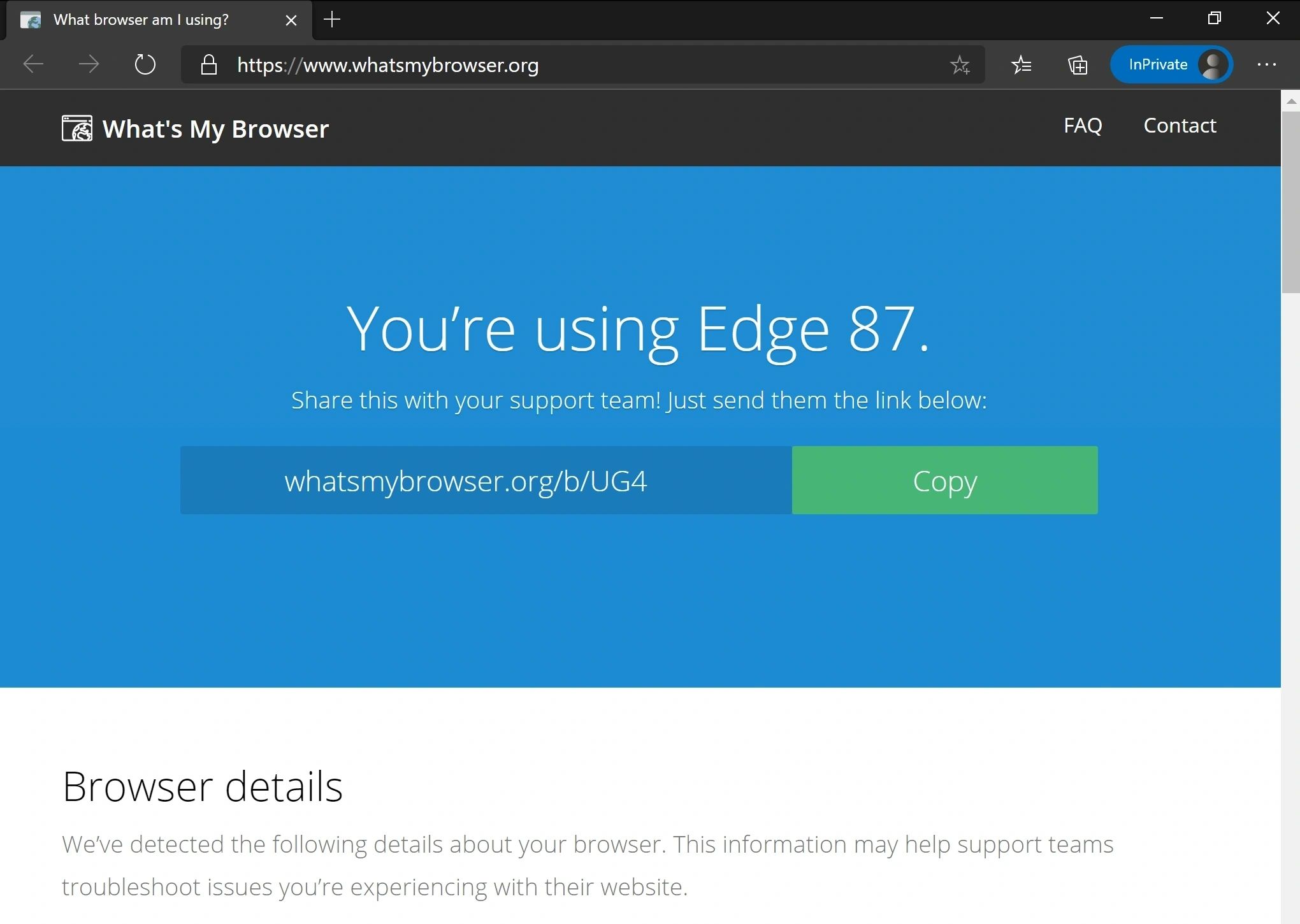
Note: --edge-kiosk-type=public-browsing runs a limited multi-tab Edge with an address bar, in an InPrivate session.
Without the public-browsing parameter, Edge shows one site full screen (no address bar, no tabs). Microsoft calls this Digital/Interactive signage, also InPrivate (see Configure Microsoft Edge kiosk mode):

If you try to close Edge in any way (for example Alt+F4), Shell Launcher restarts it in kiosk mode, as set in the configuration.