- Platforms
- macOS
- Products
- IntuneApple BusinessEntra ID
- Result
- A new Mac enrolls in Intune during Setup Assistant, supervised, with locked enrollment and its apps installed
Overview
Enroll corporate Macs into Microsoft Intune with Apple Automated Device Enrollment: create the enrollment policy, target groups and apps, and walk through Setup Assistant.
Automated Device Enrollment (ADE, formerly DEP) is a free cloud service from Apple that enrolls new corporate-owned Apple devices (macOS, iOS, iPadOS, tvOS) into an MDM platform such as Microsoft Intune. The device is configured and managed from the first Setup Assistant screen of the out-of-box experience (OOBE). ADE is the Apple counterpart of Windows Autopilot, which sets up new company-owned Windows devices.
Benefits of ADE for Macs:
- The Mac is put into supervised mode automatically (macOS 10.14.4 and later).
- The MDM profile is installed as part of setup, and with locked enrollment users can't remove it.
- You choose which Setup Assistant screens users see during the first setup.
If you are connecting Apple Business (formerly Apple Business Manager) to Intune for the first time, see my post on ADE with iOS and iPadOS. It covers creating and uploading the ADE token that Intune uses to sync your organization's devices. One token usually serves all Apple device types, so in my tenant it was already in place for Macs:

You can also enroll macOS virtual machines (VMs) into Intune, but only for testing, not for production. ADE works with a macOS VM if the VM uses the serial number of a real Mac that was bought from an Apple reseller and added to Apple Business. That trick usually works, but a physical Mac is more reliable for ADE.
Prerequisites
Before you start, check that you have the following.
| Area | What you need | Docs |
|---|---|---|
| Licence | Microsoft Intune Plan 1 for each user (userless Macs can use a device-only licence, without Conditional Access) | Licensing |
| Microsoft Entra ID P1 for dynamic groups | Dynamic groups | |
| Admin role | Policy and Profile Manager in Intune for tokens and enrollment policies (some tasks need Intune Administrator) | Roles |
| Intune | MDM authority set to Intune and a valid Apple MDM push certificate (renewed every year) | Push certificate |
| An ADE token from Apple Business uploaded to Intune (renewed every year) | ADE token | |
| Apple Business | An Apple Business account (formerly Apple Business Manager) | Sign up |
| Macs bought from an Apple reseller, or Macs with Apple silicon or a T2 chip on macOS 12.0.1 or later added with Apple Configurator | SuppliersApple Configurator | |
| Devices | Physical Macs with macOS 15 or later (VMs only for testing); macOS 10.14.4 and later are supervised automatically | Supported platformsSupervision |
Configuration
With the ADE token in place, create the enrollment policy, then the groups and apps.
| Step | Console | What you set |
|---|---|---|
| 3.1 | Intune | ADE token from Apple Business |
| 3.2 | Intune | macOS enrollment policy |
| 3.3 | Entra | Dynamic device groups for Macs |
| 3.4 | Intune | Microsoft 365 apps from Apps and Books |
| 3.5 | Intune | Company Portal for macOS |
| 3.6 | Parallels Desktop | macOS virtual machine for testing (optional) |
Check the ADE token
Intune admin center
Apple Business must be connected to Intune with an ADE token. In the Intune admin center (intune.microsoft.com), go to Devices > Enrollment > Apple > Enrollment program tokens (see Create an ADE token for macOS):
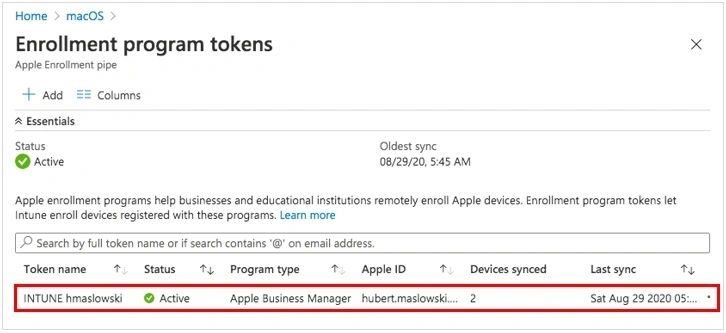
Note: the token must be renewed every year. On the Apple side, the connection is now under Devices > Management Services > Connect external device management in Apple Business (see Link to an external device management service). For the full steps, see my iOS and iPadOS post.
Create a macOS enrollment policy
Intune admin center
Select your token, then go to Enrollment policies > Create policy > macOS. In 2020 this was Profiles > Create profile > macOS, as in the screenshot:
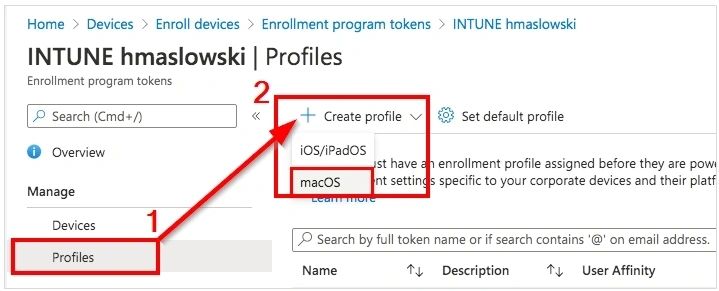
Update (October 2026): Microsoft renamed enrollment profiles to enrollment policies. The older Profiles experience gets no new features and will be retired. The wizard now has the tabs Basics, Device group (enrollment time grouping with a static group) and Configuration settings (see Set up ADE for macOS).
Select these options:
- User affinity: Enroll with User Affinity
- Authentication method: Setup Assistant with modern authentication (recommended)
- Locked enrollment: Yes (users can't remove the MDM profile; you can't change this later without a wipe)
- Await final configuration: Yes (default for new policies)
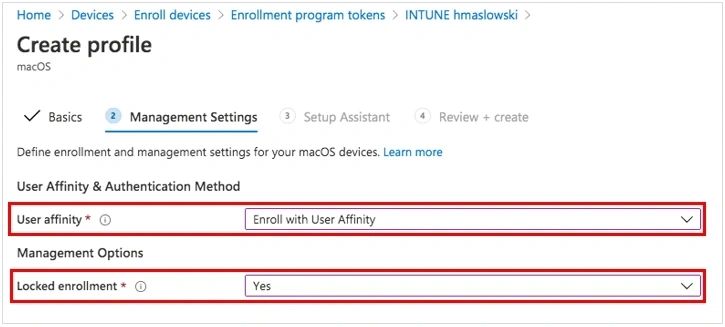
Choose Enroll with User Affinity when each Mac belongs to a user. For shared Macs or kiosks, enroll without user affinity.
Setup Assistant with modern authentication works on macOS 10.15 and later and supports multifactor authentication (MFA) during setup. After setup, the user signs in to Company Portal to finish the Microsoft Entra registration, which makes the Mac eligible for Conditional Access and compliance. Setup Assistant (legacy) is no longer recommended. Await final configuration keeps the user at the end of Setup Assistant until the critical policies are installed.
Configure the Setup Assistant screens you want to show or hide:
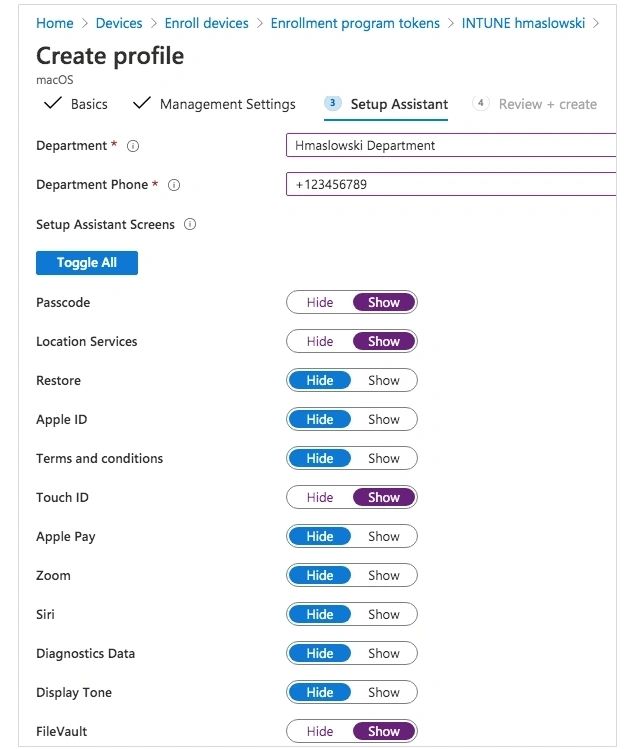
Note: the list of screens now goes up to macOS 26, and on macOS 15.4 and later the Restore screen can't be hidden. The policy also has new account settings (local admin and user account, account prefill, macOS LAPS on macOS 12 and later).
Review and create the policy:
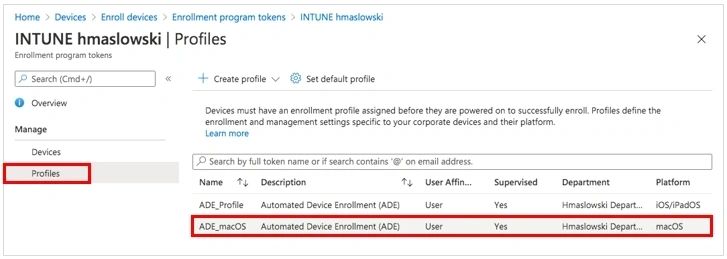
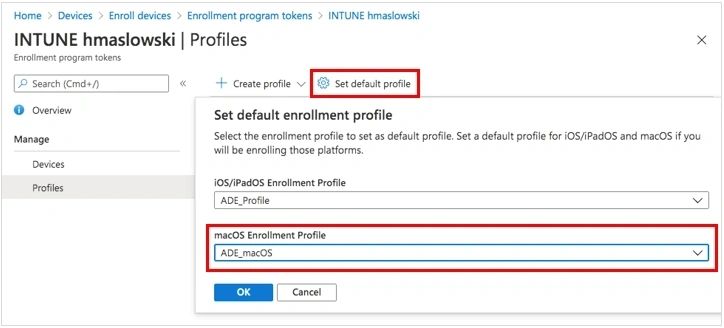
If one policy is enough for all your Macs enrolled with ADE, set it as the default (now Set Default Policy):
Create dynamic groups in Microsoft Entra ID
Microsoft Entra admin center
Dynamic groups (Microsoft Entra ID P1) are a good way to target policies and apps at Macs. I suggest at least these three (see dynamic membership rules):
a) All corporate macOS devices
(device.deviceOSType -eq "MacMDM") -and (device.deviceOwnership -eq "Company")b) All personal macOS devices
(device.deviceOSType -eq "MacMDM") -and (device.deviceOwnership -eq "Personal")c) Devices enrolled with your ADE policy, matched on the policy name:
(device.enrollmentProfileName -eq "ADE_macOS")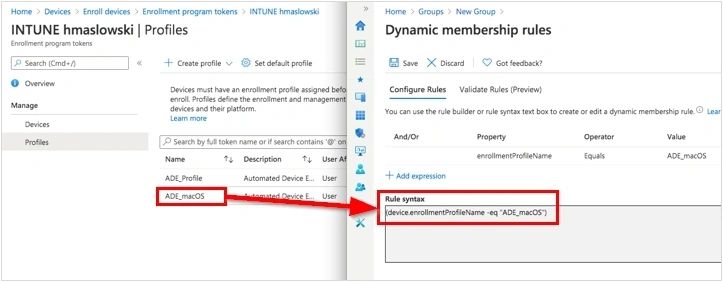
Tip: dynamic groups can delay the first policies and apps. Enrollment time grouping on the policy's Device group tab, or assignment filters, are faster alternatives.
Deploy Microsoft 365 apps
Intune admin center
The Apple Volume Purchase Program (VPP, now Apps and Books in Apple Business) uses one content token for all Apple devices, so you set it up once. See my iOS and iPadOS post for the steps.
In my test I deploy Word, Excel, PowerPoint and Outlook as VPP apps. Without VPP, you can deploy the Microsoft 365 Apps for macOS suite (Microsoft 365 Apps for enterprise, formerly Office 365 ProPlus), which also includes Teams, OneNote and OneDrive:
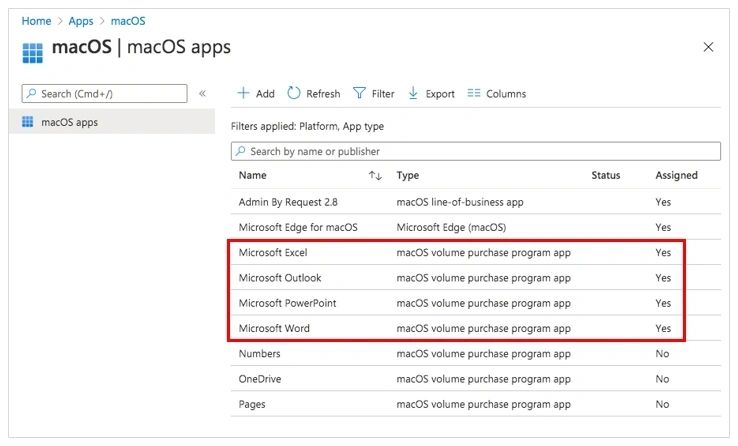
Note: Office updates need macOS 11 or later. Version 16.66 (October 2022) was the last one for macOS Catalina.
Deploy the Company Portal app
Intune admin center
Company Portal for macOS isn't in the App Store, so it isn't available through VPP. Microsoft lists three ways to deploy it (see Add Company Portal for macOS):
- Instruct users to download and install it
- Install it as a macOS app (PKG)
- Install it with a macOS shell script
I recommend the PKG app. Download CompanyPortal-Installer.pkg, then in the Intune admin center go to Apps > All Apps > Create > macOS app (PKG) and upload the file (see Add an unmanaged macOS PKG app). In the detection rules keep only the bundle ID com.microsoft.CompanyPortalMac, and assign the app as Required to your corporate Mac group. Company Portal then keeps itself up to date with Microsoft AutoUpdate (MAU).
Update (October 2026): in 2020 I wrapped CompanyPortal.pkg into an .intunemac file with the Intune App Wrapping Tool for Mac and uploaded it as a macOS LOB app. Microsoft removed the upload of .intunemac files in August 2022, so I removed those steps and screenshots from this post.
Optional: use a macOS virtual machine for testing
A physical Mac is the better choice, but for this test I used a macOS VM in Parallels Desktop 15 with macOS 10.15 Catalina. Intune supports macOS VMs for testing only, on Parallels Desktop, VMware Fusion (Intel Macs only) and Apple silicon (see Enroll virtual macOS machines for testing).
For ADE to work in a VM, I gave the VM the serial number of a real Mac from my Apple Business account. In Parallels Desktop this is under Control Center > Configure > Hardware > Boot Order > Advanced Settings > Boot flags:
devices.smbios.serial=<serial number of a Mac in Apple Business>
devices.mac_hw_model="MacBookAir7,2"
Note: Microsoft doesn't document this serial number trick, so treat it as an unsupported lab setup.
The same Mac in Apple Business (business.apple.com):

User Experience
A new Mac goes through Setup Assistant and enrolls in Intune.
In this test I enroll a macOS Catalina 10.15.3 VM into Microsoft Intune with ADE.
1. On the Welcome screen, select your country or region and select Continue:

2. On Written and Spoken Languages, select Customise Settings or Continue:

3. The Remote Management screen appears only on devices assigned through ADE, and users can't skip it. Select Continue:

Sign in with your Microsoft Entra ID account:

Update (October 2026): the screenshot shows the legacy Setup Assistant sign-in, which didn't support MFA in 2020. I originally advised turning off per-user MFA to get past this screen. Don't do that: with Setup Assistant with modern authentication, users sign in on a Microsoft sign-in page and complete MFA during setup. I removed that advice and its screenshot.
4. Create the local computer account:

5. Setup Assistant shows the screens you left visible in the enrollment policy:

6. Setting Up Your Mac:

7. The Mac is now supervised automatically:

On macOS Catalina, you check supervision in System Preferences > Profiles. On current macOS it is System Settings > General > Device Management ("This Mac is supervised and managed by…"):
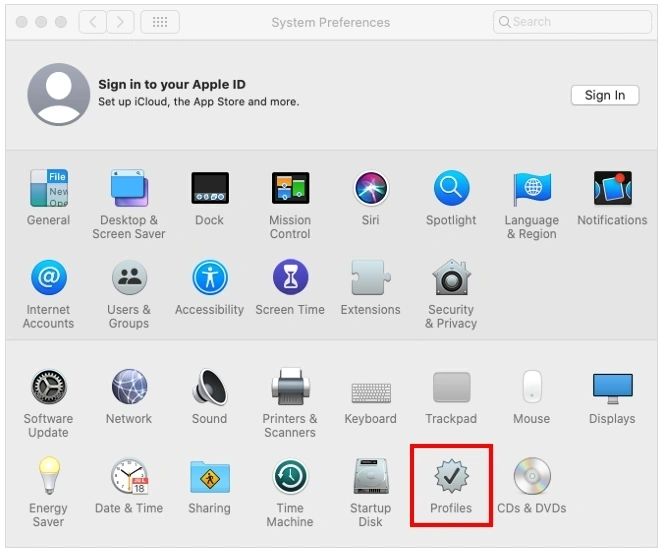
The Management Profile (MDM):

Note: because this is ADE for corporate-owned devices, users don't have to approve the MDM profile manually, as they do when they enroll a personal Mac.
8. The policies, profiles and apps assigned to the groups are installed:
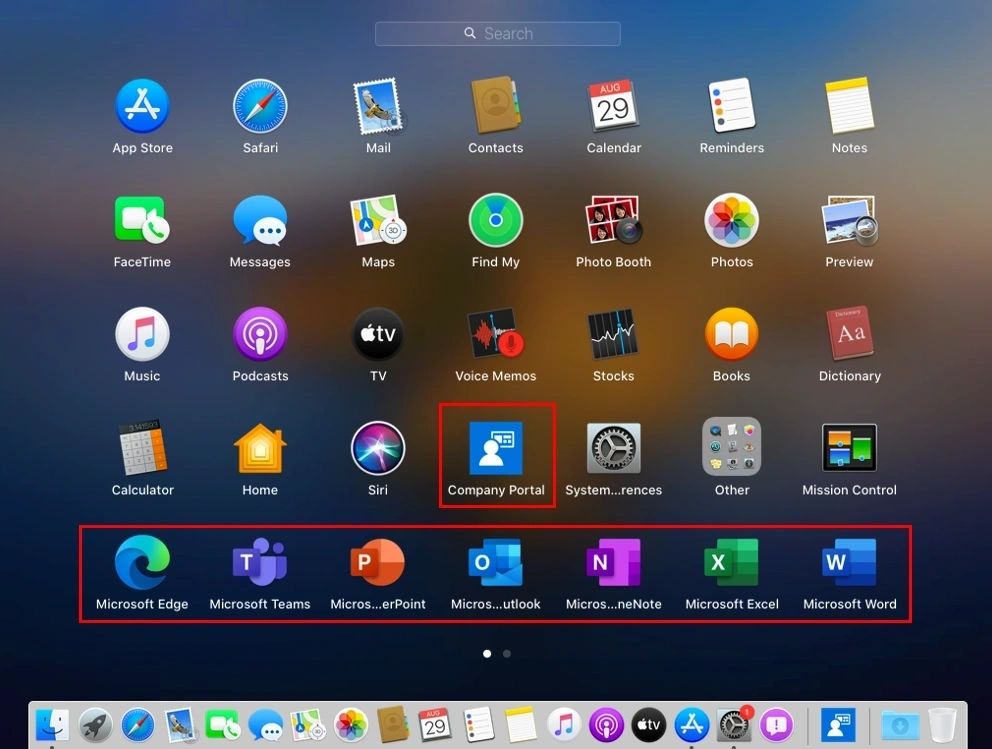
Note: Company Portal, Microsoft Edge and the Microsoft 365 apps were installed.
ADE is now finished: the Mac is enrolled and managed. The user then opens Company Portal and signs in, which registers the Mac in Microsoft Entra ID so it can reach resources protected by Conditional Access.
Intune admin center
In the Intune admin center (intune.microsoft.com):
The Mac has Corporate ownership:
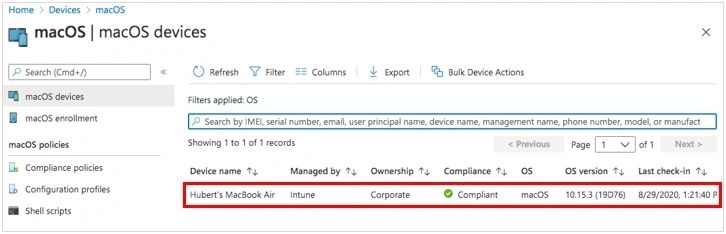
Device configuration profiles:
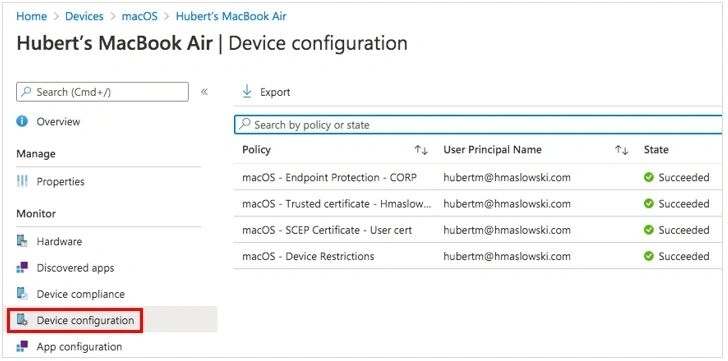
The Hardware page also shows that the Mac is supervised:

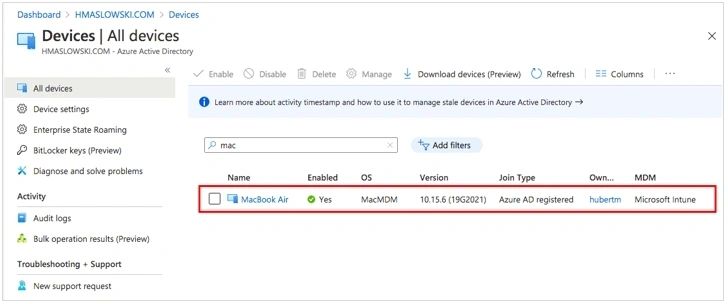
In the Microsoft Entra admin center (entra.microsoft.com), the Mac is Microsoft Entra registered: