- Platforms
- iOSiPadOS
- Products
- IntuneApple BusinessEntra ID
- Result
- A personal iPad enrolls with User Enrollment: work apps and data are separated and Intune sees no personal data
Overview
Set up Apple User Enrollment for personal iPhones and iPads with Microsoft Intune, and federate Apple Business with Microsoft Entra ID so users sign in with their work account.
Apple User Enrollment is made for personal (BYOD) iPhones and iPads. If you know Android Enterprise, think of it as the Apple version of the work profile. Work apps and data live on a separate, cryptographically protected APFS volume that belongs to the user's Managed Apple Account (formerly Managed Apple ID), isolated from the personal Apple Account. Microsoft Intune sees only the work part: no serial number, no phone number, no personal apps (see Overview of Apple User Enrollment).
I wrote this guide in August 2020, when Intune supported User Enrollment only through the Company Portal app and the feature was still in preview (it was announced in 2019). Since then Apple and Microsoft moved to account-driven user enrollment: the user starts enrollment by signing in with a work account in the Settings app on iOS/iPadOS 15 or later. Microsoft has deprecated User Enrollment with Company Portal for newly enrolled devices, so the step-by-step flow in my screenshots is now history. I updated the configuration below for the current method and kept the 2020 user flow at the end.
Managed Apple Accounts can be created by hand in Apple Business (formerly Apple Business Manager), synced from Microsoft Entra ID (formerly Azure AD) with directory sync, or used through federated authentication. With federation, users sign in to their Managed Apple Account with their existing Microsoft Entra username and password. Apple Business federates with Microsoft Entra ID, Google Workspace or another OIDC identity provider, one at a time. In 2020 I used SCIM for provisioning (see my SCIM post); for Microsoft Entra ID, Apple Business now uses directory sync instead.
Prerequisites
Before you start, check that you have the following.
| Area | What you need | Docs |
|---|---|---|
| Licence | Microsoft Intune Plan 1 for each user (included in Microsoft 365 E3, E5 and Business Premium); Apple Business is free | Licensing |
| Admin role | Policy and Profile Manager in Intune for enrollment profiles; Intune Administrator to set the MDM authority | RolesMDM authority |
| Microsoft Entra Global Administrator for the first federation approval in Apple Business | Entra federation | |
| Intune | MDM authority set to Intune and a valid Apple MDM push certificate (renewed every year) | Push certificate |
| JIT registration with Microsoft Authenticator and a service discovery file on your sign-in domain | Account driven | |
| Apple Business | An Apple Business account and a domain you can verify with a DNS TXT record | Sign upDomains |
| For federation: UPN equal to the email address, the domain locked and captured | FederationDomain capture | |
| Devices | iOS/iPadOS 15 or later for account-driven user enrollment (15.5 or later for federated sign-in); Intune supports iOS/iPadOS 18 and later | Supported platformsApple methods |
Configuration
Set up Intune first, then federate your domain in Apple Business.
| Step | Console | What you set |
|---|---|---|
| 3.1 | Intune | Enrollment type profile for user enrollment |
| 3.2 | Intune | Just-in-time registration and the service discovery file |
| 3.3 | Apple Business | Verified domain |
| 3.4 | Apple Business | Federation with Microsoft Entra ID |
| 3.5 | Apple Business | Domain capture for conflicting Apple Accounts |
Create the enrollment type profile in Intune
Intune admin center
In the Intune admin center (intune.microsoft.com), go to Devices > Enrollment > Apple > Enrollment types > Create profile > iOS/iPadOS. In 2020 the tile was called Enrollment types (preview) under Enrollment targeting:

Under Settings > Enrollment type you choose how personal devices enroll:
- Account driven user enrollment: users get User Enrollment from the Settings app. The device is always personal, and work apps and data are separated from personal ones. If a device runs iOS/iPadOS 14.9 or earlier, Intune falls back to User Enrollment with Company Portal.
- Device enrollment with Company Portal or Web based device enrollment (iOS 15 and later): the whole device is managed. There is no work and personal separation, so Intune can wipe the device and sees details such as the serial number.
- Determine based on user choice: the user chooses who owns the device. Company-owned devices use device enrollment and are marked as corporate in Intune (not supervised, only tagged).

If the user picks I own this device, there are two more options: Secure entire device (device enrollment) or Secure work-related apps and data only (User Enrollment, the better choice for personal devices). The 2020 screenshot still shows the old option names:

In my test I used one profile for all users with Determine based on user choice. The user flow is at the end of this post.
Prepare account-driven user enrollment
Intune admin center
Account-driven enrollment needs two things that the Company Portal method didn't (see Set up account driven Apple User Enrollment):
- Just-in-time (JIT) registration with the Microsoft Authenticator app, so users don't have to sign in again and again during enrollment and in work apps.
- A service discovery file on the domain your users sign in with. Apple reads it from https://<your domain>/.well-known/com.apple.remotemanagement. Save it without a file extension, serve it with the content type application/json, and replace YourAADTenantID with your Microsoft Entra tenant ID:
{"Servers":[{"Version":"mdm-byod", "BaseURL":"https://manage.microsoft.com/EnrollmentServer/PostReportDeviceInfoForUEV2?aadTenantId=YourAADTenantID"}]}Check that both requests return Content-Type: application/json. If the file is wrong, users see Sign-in Failed in Settings:
curl -I "https://contoso.com/.well-known/com.apple.remotemanagement"
curl -I "https://contoso.com/.well-known/com.apple.remotemanagement?user-identifier=firstname.surname@contoso.com&model-family=iPhone"
Add and verify your domain in Apple Business
Apple Business
Federation works only for a domain that your organization has verified in Apple Business, and you must be able to change the public DNS records of that domain (see Add and verify a domain). Sign in to business.apple.com as an Administrator and go to Settings > Domains. In 2020 this was Settings > Accounts > Domains > Edit > Add Domain:

Apple gives you a TXT record to create at your DNS provider (for example GoDaddy), and you have 14 days to verify it. You can add only domains that no other organization has verified. Domains can now also be verified by syncing them from Microsoft Entra ID.
Connect Microsoft Entra ID
Apple Business
Today the flow is: Settings > Domains > Get Started next to User sign-in and directory sync, choose Microsoft Entra ID, select Sign in with Microsoft and accept the permissions. Apple then guides you through three steps: approve, test with one user, and turn on (see Federated authentication with Microsoft Entra ID).
Note: the first approval needs a Microsoft Entra Global Administrator. After the connection works, you can change the account to a lower role such as Application Administrator, Cloud Application Administrator or Global Reader. The user principal name (UPN) must match the email address; UPN aliases and Alternate IDs are not supported.
In 2020 the consent screen looked like this:

After the connection, federated authentication showed as configured:

Then I federated the verified domain with the Federate button and signed in with a Microsoft Entra administrator account (the button is now called Sign in with Microsoft):


Resolve user name conflicts
Apple Business
Before federation is turned on, Apple checks whether personal Apple Accounts already use your domain. In 2020 I had 3 user name conflicts:

Apple now calls this process domain capture, and federation requires the domain to be locked and captured. Affected users get a notification (iOS 18 or macOS 15.1 and later) and have 30 days to move their account or choose a new email address. In 2020 the period was 60 days. Turning on domain capture can't be undone.


Then federation was enabled:


User Experience
First the current flow, then the 2020 flow from my screenshots.
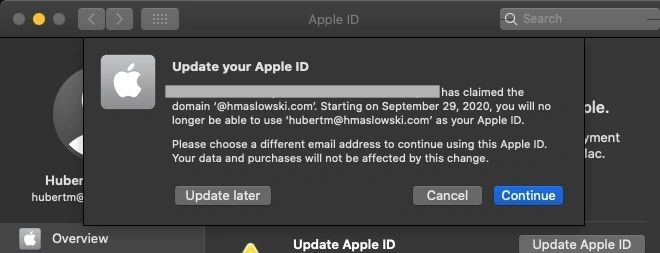
This is how the notification looked for a user on a Mac in 2020:
Today (account-driven): on iOS/iPadOS 15 or later the user opens Settings > General > VPN & Device Management, signs in with the work account, allows remote management and enters the device passcode. With federation, the work account and the Managed Apple Account use the same Microsoft Entra credentials.
2020 (User Enrollment with Company Portal, now deprecated): this is how it looked on iPadOS 13.6.
1. Open Company Portal and sign in with the Microsoft Entra account:

2. Tap Begin, then select I own this device and Secure work-related apps and data only. This combination starts User Enrollment; Secure entire device would start device enrollment:

3. Review what your organization can and can't see, then tap Continue:

4. Tap Continue again to download the management profile and select Allow:

5. Tap Enrol my iPad. With working federation you see the Apple ID for your organisation screen (now Managed Apple Account); tap Continue. If you are asked for a password straight away instead, federation is not set up correctly or the user still has a name conflict:

6. Enter the Microsoft Entra password and tap Sign in:

7. Tap Done. Company Portal shows the iPad as Personal:

In the Intune admin center (intune.microsoft.com), administrators don't see personal details such as the serial number or phone number:

The same privacy rule applies to apps: only managed (work) apps are visible, and no personal apps appear under Discovered apps. Remote actions are limited to retire, delete, remote lock and sync.