- Platforms
- iPadOS
- Products
- IntuneApple BusinessEntra ID
- Result
- Users sign in to a shared, supervised iPad with their work account, and their data stays separate
Overview
Let many employees share one iPad: each signs in with their Microsoft Entra ID credentials as a Managed Apple Account and gets their own apps and data.
Apple introduced Shared iPad for Business in March 2020. It needs iPadOS 13.4 or later and is available to companies in Apple Business (formerly Apple Business Manager) that set up their iPads with Automated Device Enrollment (formerly DEP) or Apple Configurator. Before that, Shared iPad was available only to schools through Apple School Manager.
Managed Apple Accounts (formerly Managed Apple IDs) are what Shared iPad is built on. With federated authentication with Microsoft Entra ID (formerly Azure AD), users sign in with their Microsoft Entra ID email (UPN) and password. Their apps, data and settings follow them to any Shared iPad in the organization.
Shared iPad for Business also supports temporary sessions (on by default). A user taps Guest, signs in without a Managed Apple Account, and all data is erased at sign-out. To allow only Managed Apple Accounts, block Shared iPad temporary sessions (recommended).
To see how I set up federated authentication with Microsoft Entra ID for Apple Business, so users sign in with their Microsoft Entra ID credentials as Managed Apple Accounts, see my other post.
Prerequisites
Before you start, check that you have the following.
| Area | What you need | Docs |
|---|---|---|
| Licence | Microsoft Intune Plan 1. Apple Business is free | Licensing |
| Admin role | Intune Administrator, or a custom role with Enrollment programs permissions, for the enrollment profile | Roles |
| An Apple Business role that can manage devices and Managed Apple Accounts | Sign up | |
| Intune | Apple MDM push certificate and an enrollment program token connected to Apple Business | Push certificateADE |
| Devices | iPad with iPadOS 13.4 or later and at least 32 GB of storage, supervised (iPad 5th gen or later, iPad Air 2 or later, iPad mini 4th gen or later, any iPad Pro) | AppleCompare |
| Plan users per iPad: on 32 GB, 10 GB is for iPadOS and 8 GB for apps, with at least 1 GB per user. Without a setting, Shared iPad allows 10 users | Storage | |
| Apple | An organization in Apple Business, signed up and verified, with the iPads assigned to your MDM server | Sign up |
| Recommended: Managed Apple Accounts through federated authentication with Microsoft Entra ID | FederationManaged accounts |
Configuration
Create the Shared iPad enrollment profile, then assign the devices to it.
Create an enrollment profile for Shared iPad
In the Intune admin center, go to Devices > Enrollment > Apple > Enrollment program tokens:

Note: Intune and Apple Business must already be connected (see the prerequisites). If they aren't, see my Automated Device Enrollment post.
Select the enrollment program token of the Apple Business account that has your Shared iPads. Add a new profile for Shared iPad and assign devices to it, either manually in Intune or, as I do, with a dedicated token for Shared iPads whose devices get the profile automatically as the default profile.
Configure the profile (see Create an Apple enrollment policy):
- User affinity: Enroll without User Affinity
- Supervised: Yes
- Shared iPad: Yes
- Maximum cached users: 5 (up to 24)
Update (October 2026): the profile now also has settings for iPadOS 14.5 and later: Require Shared iPad temporary session only, and session timeouts for temporary and user sessions. With Shared iPad set to Yes, all Setup Assistant panes after activation are skipped automatically, so the hidden panes below don't matter for Shared iPad.

Under Setup Assistant, choose which setup panes to hide from users:

Select Save.
Assign the devices to the profile
When the profile is ready, add the devices to it. With only a few devices, assign them manually in Intune.
I assign my devices in Apple Business to a dedicated token for Shared iPads, and Intune gives them the default Shared iPad profile automatically:

The default profile (ADE_Shared_iPad) is assigned to devices synced to Intune, as set in Set default profile:
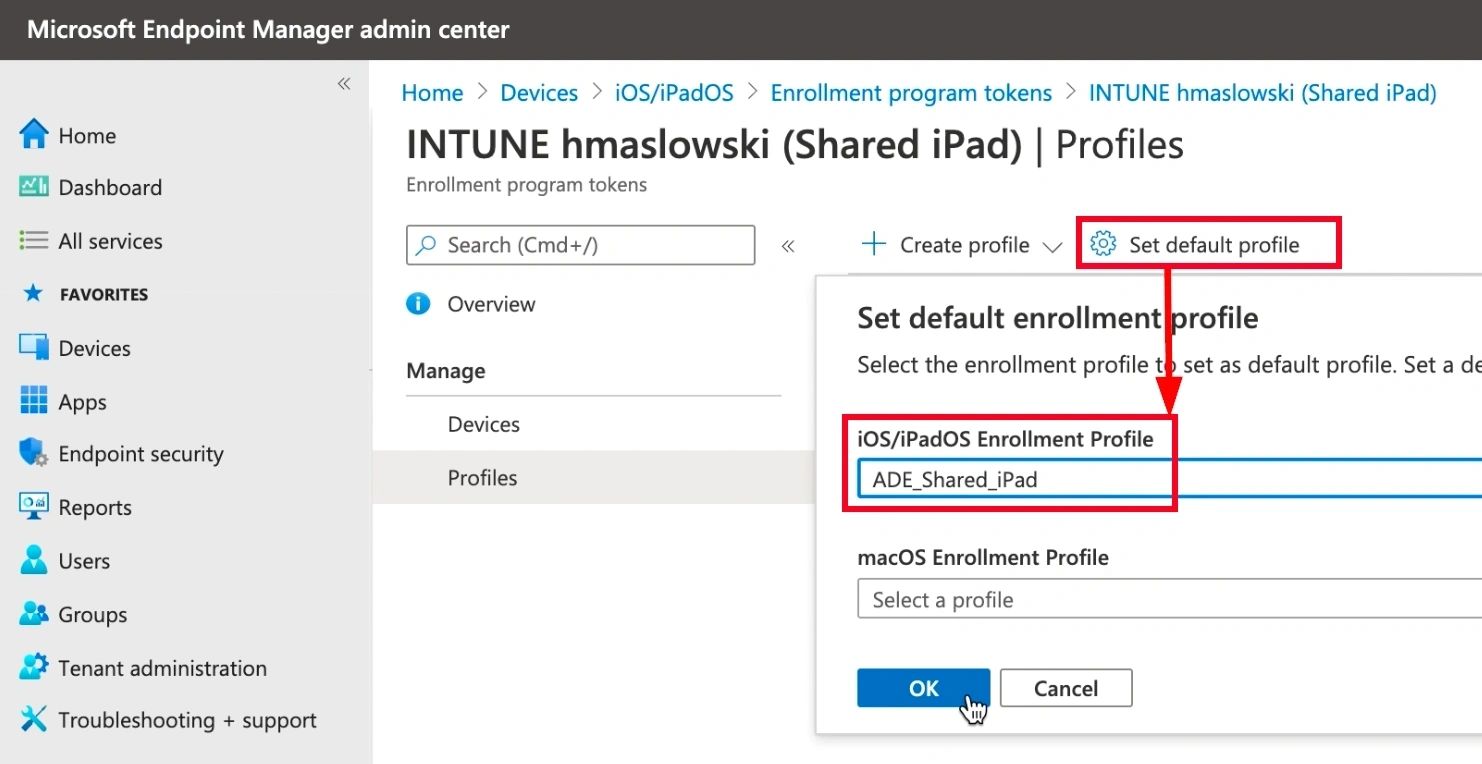
Note: my other iPhones and iPads sync through a different token with a different default profile.
With a single token (no separate channel for Shared iPads), create the profile and add the synced devices to it manually. Once the devices have the Shared iPad profile, enroll a device from the out-of-box experience to test.
User Experience
Finally, set up an iPad from the out-of-box experience and sign in.
I tested on an iPad (8th generation) Wi-Fi 32 GB with iPadOS 14.2.
When the device starts, the standard Hello screen appears:

Choose the language and the country or region:

After connecting to Wi-Fi or a cellular network, activation starts:

When I tried another device, an iPad Air 2 with 16 GB, I couldn't get past this activation screen. It didn't meet the minimum of 32 GB of storage:

The user signs in with a Managed Apple Account, using their Microsoft Entra ID credentials:


Getting Ready (the signed-in user is shown in the top-left corner):

The user selects the language and region and creates their own iPad passcode.
Note: each user has their own passcode to sign in to the device:


The user is signed in with their work account (Managed Apple Account), and the iPad is supervised, which Shared iPad requires:

On the lock screen, the user can sign out:

Signing out:

The Recent Users screen appears. Other users (Managed Apple Accounts) sign in here, and so do guests if temporary sessions aren't blocked, as in my example:

The Recent Users screen after two users have signed in on the same device:

To remove the Guest option (bottom-right icon on the Recent Users screen), deploy one setting in an iOS/iPadOS device restrictions profile in Intune:

The Guest option disappears, and only users with Managed Apple Accounts can sign in, with the same credentials as their Microsoft Entra ID account:

After the first sign-in, the user sets an alphanumeric passcode:

If a user forgets it, an Apple Business administrator can reset it, see Create Shared iPad passcodes in Apple Business.
The Intune admin center shows the device as enrolled by the Shared user:
